code.neenbedankt.com

 
« Back to blog

Engine Watch updates

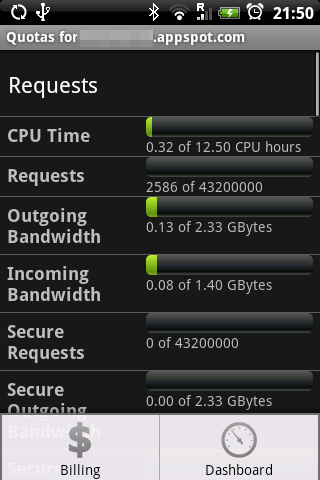
More updates to Engine Watch, my Android app to list the quotas of your Google App Engine application!
This version adds a few things:

First of all, Engine Watch will now use your configured Google accounts, if you are running Android 2.0 or up _and_ you have the Google Account options in the accounts and sync settings. This way you don't have to enter and store your password in Engine Watch, which makes it easier to set up, and more secure. Thanks to Justin from Google for helping me test this, as my Hero still runs on Android 1.5.

Secondly you can now create an Engine Watch shortcut on the home screen for a specific application, which saves you a few clicks because you don't have to select the account and application first.

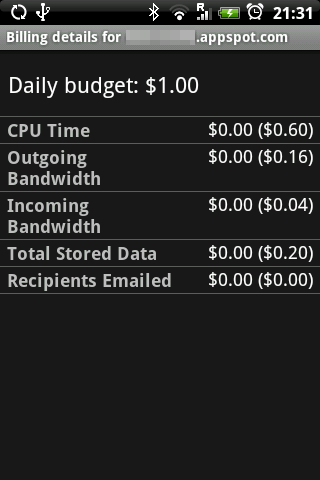
Finally this version also adds the details for the billing details, if you have billing enabled for your app. Just use the menu option from the quota screen.

Here's the barcode:
barcode for Engine Watch

Or search for Engine Watch in the Android market.

Hope you like it!

Comments (4)

Feb 11, 2010
Nick Johnson said...
Nice job on making it work with the built in accounts. Are there docs on that somewhere? Did you have to jump through any extra hoops to authenticate with App Engine?
Feb 11, 2010
Hugo said...
No, not at all, it was just as easy as using ClientLogin. I could just swap out my old code to obtain the authtoken from ClientLogin with the new code to obtain it from AccountManager. The android code is something like this:

 
AccountManager am = AccountManager.get(this); Account[] accounts = mgr.getAccountsByType("com.google");


Then I use http://developer.android.com/reference/android/accounts/AccountManager.html#blockingGetAuthToken%28android.accounts.Account,%20java.lang.String,%20boolean%29 to get the authtoken with authtokenType "ah" in a background task.
Apr 09, 2010
morten wilken said...
when i try to click my account, iget the error "you should authorize engine watch to use this account"

How can i work this out?

This seems like a very useful app, kudos!

Apr 09, 2010
Hugo said...
You should see a notification pop up in the notification area (at the top of your screen), if you approve that pop up then Engine Watch is able to use your account. Hope that helps!

Leave a comment...